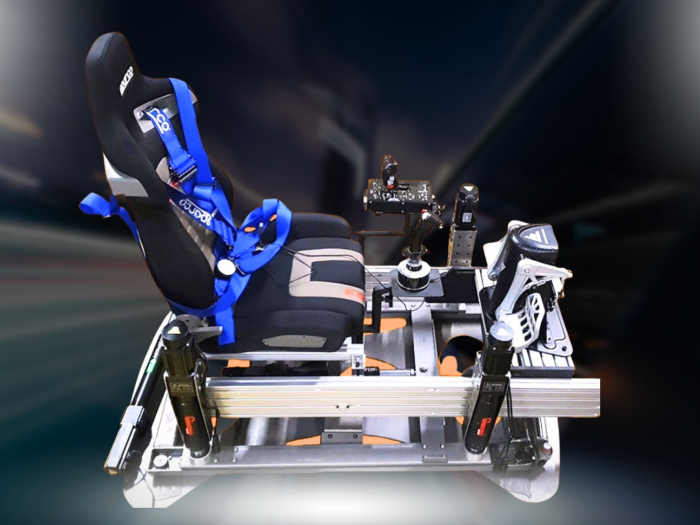

A more powerful motion platform isn’t always the answer when movement feels out of sync with the action on screen. The delay may begin earlier in the signal chain, with game telemetry, motion software or a connection, or it may come from how visual and physical movement combine. Reducing latency in motion simulators starts with finding where the delay occurs, not changing several settings at once.
If you’ve adjusted settings without knowing which change helped, or wondered whether your hardware is the weak link, a measured approach can make the next step clearer. This guide explains how to identify the stages that may contribute to perceived motion delay, test likely causes one at a time and decide whether settings, software or hardware need attention.
Use a repeatable process to observe the response, isolate possible bottlenecks and compare results. That way, your next change is guided by evidence rather than guesswork, with the aim of making feedback feel more connected without compromising smooth movement or safety.
Key Takeaways
- Distinguish perceived delay from movement that feels weak, rough or incorrectly cued before changing your setup.
- Trace the signal path from game telemetry through software and connections to the platform’s physical response.
- For reducing latency in motion simulators, record a baseline, change one setting or connection at a time, then repeat the same test to see what made a difference.
- Balance quicker cues with smooth, coherent movement. Don’t assume one setting suits every simulator.
- Consider another platform only if repeatable tests point to a hardware limitation, and check compatibility with your setup.
What does latency in a motion simulator feel like, and where does it begin?
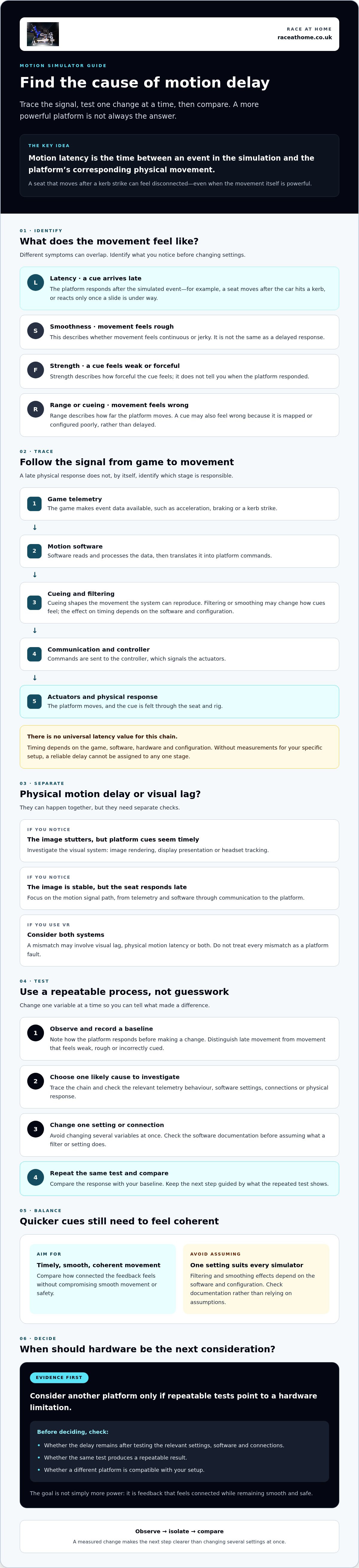
Motion simulator latency is the time between an event in the simulation and the platform’s corresponding physical movement. You might notice it as a seat that moves after the car hits a kerb, or a platform that reacts only once a slide is already under way. The cue can feel disconnected from the action, even if the movement itself is powerful.
That sensation doesn’t necessarily mean the platform is too slow. Latency differs from smoothness, which describes whether movement feels continuous or jerky; strength, which describes how forceful the cue feels; and range, which describes how far the platform moves. A cue may also feel wrong because it is mapped or configured poorly, rather than delayed. Since these symptoms can overlap, reducing latency in motion simulators starts with identifying what you’re actually experiencing.
How does a game event become physical movement?
A game produces telemetry about events such as acceleration, braking or a kerb strike. Motion software interprets that data and creates commands for the controller, which signals the actuators to move the platform. The foundational Motion simulator overview explains how motion cueing translates virtual movement into physical cues.
Each stage may contribute delay. Telemetry may be produced or read late, software may process or filter it, communication may take time, and the platform must then respond mechanically. For example, a kerb impact is represented in the game’s data, translated into a movement command and then felt through the seat. Without measurements for your specific setup, it isn’t possible to assign a reliable time to any one stage.
Filtering can make the picture harder to interpret. Smoothing may make movement feel more coherent, but its effect on cue timing depends on the software and configuration. Check the relevant documentation before assuming a particular setting is responsible.
Is motion latency the same as graphics or VR lag?
No. Motion latency concerns the platform’s physical response. Graphics or VR lag concerns what you see, including image rendering, display presentation or headset tracking. They can happen at the same time, making the whole experience feel out of sync, but they need separate checks. If the image stutters while platform cues remain timely, investigate the visual system. If the image is stable but the seat responds late, focus on the motion signal path.
With VR, consider both systems rather than treating every mismatch as a platform fault. For headset-focused optimisation, see the Pimax VR motion simulator setup guide. Once you’ve identified whether the lag is physical, visual or both, you can test the relevant part of the setup instead of changing several variables at once.
Which parts of a motion simulator signal chain can add delay?
The signal chain runs from game telemetry, through motion software and its cueing or filtering, to controller communication and actuator movement. Delay may enter at any point, so a late physical response doesn’t by itself identify the source. Treat each stage as something to investigate, not a guaranteed cause.
A game first makes motion-related data available. Software reads and processes it, converts it into commands the platform can reproduce, then sends those commands to a controller. The controller signals the actuators, which move the rig and its load. This is the route from simulated event to physical cue, but there’s no universal latency value for the chain. Timing depends on the game, software, hardware and configuration.
What do telemetry updates, motion cueing and filtering change?
Telemetry update behaviour can affect when motion software receives new information. If data arrives intermittently or isn’t being read as expected, a cue may appear late or uneven. Motion cueing algorithms translate the available data into platform movement within the motion the system can reproduce. Research such as the Frequency-Splitting MPC Approach explores how algorithm design can balance motion fidelity and computation time, but it doesn’t establish the cause of delay in your setup.
Check the software documentation and current filter settings before making changes. Smoothing or filtering may make cues feel less abrupt, but its effect on response depends on the implementation and configuration. Don’t assume a setting behaves the same way across different systems.
How can the controller, connection and actuators affect response?
After checking upstream processing, inspect the controller’s status and review available system logs for disconnections, warnings or interruptions. A USB or network issue, or PC performance trouble, is a possibility to test, not an automatic explanation for lag. Check connections and software status methodically. Change one thing at a time so you can tell whether the behaviour changes.
Compare commanded movement with the platform’s response only by using the manufacturer’s approved, safe test procedures. Keep clear of moving parts and don’t improvise tests that could strain the rig or put you at risk. If the command itself is already late, the cause may be upstream. If it arrives promptly but the movement doesn’t follow as expected, investigate the controller or mechanical response. Check telemetry, processing and communication before attributing a measured delay to hardware. This evidence-led approach helps reduce latency in motion simulators without replacing equipment unnecessarily.
If repeatable checks point to a platform-level constraint, you can assess options such as Race@Home motion platforms, after confirming suitability and compatibility with your setup.
How can you measure and isolate motion simulator latency?
You don’t need specialist equipment to begin diagnosing a delay, but you do need a repeatable test. The aim is to compare like with like, not to produce a precise latency figure from an informal observation. Reducing latency in motion simulators is therefore a process of gathering evidence, then changing one likely cause at a time.
What should you record before changing settings?
Start with a baseline. Note the exact symptom and when it occurs. For example, does a particular cue feel late every time? Does the image, physical movement or both seem delayed? Then record the setup details that could help explain the behaviour:
- 1. Identify the software path: Write down the game, telemetry source and motion software, including their version numbers.
- 2. Describe the hardware path: Record the motion controller, connection method and relevant PC details or error messages.
- 3. Capture current settings: Note cue mappings, filters and other motion settings before adjusting anything. Save a profile or screenshots if the software allows it.
- 4. Choose a repeatable scenario: Use the same game event or test sequence each time, under similar conditions. Record what you see and feel rather than relying on memory.
Controlled comparisons are more useful than changing several settings at once because they help link a result to a specific change.
How do you test one possible cause at a time?
With the baseline recorded, work through checks in a consistent order. First, review software release notes and documentation for updates, known issues and compatibility information relevant to your game, telemetry source, controller and platform. An update isn’t automatically a fix, so note the version before and after any change.
- Check connections separately: Inspect the relevant USB or network connection and controller status. Change one connection variable, repeat the same scenario, then record whether the symptom changed.
- Test processing settings individually: Adjust only one documented filter or cue setting at a time. Repeat the scenario and compare it with your baseline. If behaviour worsens, restore the original value.
- Observe cautiously: A phone recording can help compare the visible event and platform movement across tests, but it shouldn’t be treated as a precision latency measurement. Camera frame rate, recording synchronisation and viewing angle can affect what it shows.
Keep clear of moving parts, and don’t touch or obstruct the rig during operation. For physical inspection, calibration or actuator testing, follow the platform manufacturer’s approved procedures. If the evidence remains unclear, keep your notes and configuration rather than making several further changes. That record can help you decide which part of the setup needs closer investigation.
How do you reduce latency without making motion cues harsh or unsafe?
Quicker feedback isn’t automatically better feedback. Removing too much smoothing or increasing cue intensity without testing may make movement abrupt, exaggerated or less coherent. Reduce latency methodically: start with reversible checks, change one thing at a time and keep within the manufacturer’s safety limits throughout.
Which software and PC checks are sensible first steps?
Begin with parts of the setup you can check without altering the rig. Run the same scenario you used for your baseline, review PC performance and close background tasks that aren’t needed for the test. If behaviour improves, repeat the comparison before deciding that a particular task was responsible.
Next, check that the game’s telemetry source, selected motion device and software permissions match your intended configuration. Review motion cueing and filter settings against the software documentation rather than applying generic values. A setting that changes how quickly a cue builds may also affect how natural it feels, so assess both timing and movement quality. Check documented compatibility and release notes before updating. Record the existing versions and settings so you can identify whether a change helped or made matters worse.
When should you investigate connections or hardware?
Move on to connections if software checks leave persistent dropouts, error messages or inconsistent responses. Inspect cables and physical connections only as the manufacturer directs. Don’t unplug or handle connections whilst equipment is moving, and don’t open the platform or bypass safeguards to investigate a suspected fault.
If the same symptom remains during repeatable tests after software and connection checks, hardware may need closer investigation. That doesn’t mean replacement is automatically necessary. Follow the manufacturer’s guidance for inspection, calibration or actuator testing, and seek suitably qualified support if a check falls outside the procedures you’re authorised to carry out. A platform-level limitation is more plausible when the command is delivered as expected but the physical response remains consistently out of step.
Record each change and restore settings that make the cues harsh, unstable or less coherent. Faster response should still feel controlled, and safety instructions take priority over experimentation. If your tests point to a hardware constraint, explore Race@Home motion platforms as options to assess. Check suitability and compatibility with your specific software and setup before deciding.
When should you consider a different motion platform for lower perceived latency?
Consider a new platform only after repeatable tests point to a platform-level constraint. If motion software is sending cues late or a connection is dropping out, replacing the platform may leave the real cause untouched. Use your test notes to distinguish the likely source before making a hardware decision.
| What your tests suggest | What to investigate next |
|---|---|
| Software or configuration issue | Check telemetry, selected devices, compatibility, processing settings and documented software behaviour. |
| Connection issue | Look for repeatable dropouts, controller errors or inconsistent response, then inspect connections as directed by the manufacturer. |
| Possible hardware limitation | If upstream checks pass but commanded movement still fails to produce the expected response consistently, investigate the platform using approved procedures. |
What should you compare before choosing a motion platform?
Compare what the platform is designed to move, the degrees of freedom you want, its physical requirements and its documented software compatibility. Confirm that it suits your rig and intended use, and check setup or controller requirements with the supplier. The 6 DOF motion simulator guide provides context for evaluating that configuration.
Ask suppliers whether they have latency or response measurements for the specific platform and configuration you’re considering, and how they were taken. A figure without a clear test method may not be comparable with results from another setup. Don’t treat an advertised specification as proof that a platform will resolve the delay you observed.
How can Race@Home help you evaluate the next step?
Race@Home designs and hand-builds its LowSlider motion platforms, including the LowSlider 3DoF motion platform and LowSlider 6 DOF Twin-Traction-Loss Motion Platform. They’re hardware options to assess after diagnosis, not a substitute for checking the software and connections in your current setup. Don’t assume a latency or response-time claim without verified evidence for the configuration.
Before choosing, gather details of the game, motion software and version, controller, connection method, rig and test results. Use the sim racing setup guide to help plan broader compatibility checks. Race@Home’s LowSlider design has an ultra-low profile and compact footprint, which may be useful when comparing physical requirements. Platforms are shipped worldwide in four pieces for customer assembly, with setup taking under an hour. This evidence-led approach helps you avoid an unnecessary upgrade.
Once you know what your setup requires, explore Race@Home motion platforms and confirm product details and compatibility before deciding.
Make your next motion upgrade with confidence
Reducing latency in motion simulators starts with tracing the full signal path and testing changes one at a time. A late cue may come from telemetry, software processing, a connection or platform response, so don’t assume new hardware is the answer until repeatable checks point to a platform-level constraint. When you adjust settings, preserve smooth, coherent movement and follow the manufacturer’s safety instructions.
If your findings suggest it’s time to assess another platform, compare its degrees of freedom, setup requirements and compatibility with your software and rig. Ask what response measurements are available and how they were tested, rather than relying on unverified claims.
Race@Home designs and hand-builds LowSlider 3DoF and 6 DOF motion platforms for private and commercial simulator users, with worldwide shipping. The LowSlider design has an ultra-low profile and compact footprint, and the platforms are shipped in four pieces for customer assembly. Explore the range and check the details that matter to your configuration: explore Race@Home motion platforms.
With a clear diagnosis and a proportionate next step, you can move towards a more connected, immersive simulator experience with confidence.
Frequently Asked Questions
What causes latency in a motion simulator?
Latency can arise at several points between an in-game event and physical movement. Game telemetry may be delayed or unavailable, motion software may take time to process it, communication with the controller may be interrupted, or the platform may not respond as expected. Graphics or VR delay can also make the experience feel out of sync. Record the symptom and test each part of the signal chain rather than assuming one cause.
How can I test latency in my motion simulator?
Start with a repeatable game event and record your software versions, connections and current settings. Observe the event alongside the platform’s movement using a suitable method, such as a recording for comparison, and follow the equipment’s safety guidance. To reduce latency in motion simulators, change one setting or connection at a time, repeat the same test and note the result. Don’t claim precise measurements unless your method and equipment can support them.
Can motion software settings reduce simulator latency?
They may help if the cause is a software configuration, processing or filtering issue. The right adjustment depends on the software and platform, so check the relevant documentation before changing settings. Alter one control at a time and compare the result with your original configuration. Changing filtering may affect cue timing as well as smoothness and how coherent the movement feels. Keep within the platform’s safety limits throughout testing.
Is motion simulator latency the same as VR lag?
No. Motion latency is the interval between a simulated event and the platform’s physical response. VR or visual lag may involve image rendering, display behaviour or headset tracking. These symptoms can happen together, so identify what appears delayed: the image, tracking, physical movement or a combination. Check the visual and motion systems separately, since improving one doesn’t necessarily resolve delay in the other.
Should I upgrade my motion platform to reduce latency?
Not necessarily. A software setting, connection issue or system configuration could be responsible, so test those possibilities before replacing hardware. Consider an upgrade only if repeatable checks point to a platform-level limitation. Compare documented capabilities and confirm compatibility with your game, motion software, controller and rig. If a supplier shares response-time or latency claims, ask how they were measured and whether the test matches your intended configuration.
Can a faster computer eliminate motion simulator latency?
A faster computer may not help if the delay comes from telemetry, motion software, connections or the platform’s physical response. Check system performance during a repeatable test and look for evidence of a PC bottleneck before upgrading. Keep visual performance separate from physical motion response: a computer change might improve image smoothness without changing when the platform moves, or vice versa.
Should I reduce motion filtering to make a simulator respond faster?
Don’t reduce filtering without checking what the setting does in your specific software. Filtering can affect cue timing and movement character, but the effect depends on the configuration and platform. Save your current settings, consult the documentation and adjust one control at a time. Compare the same test, and stop if movement becomes uncomfortable, unpredictable or inconsistent with the manufacturer’s safety guidance.


