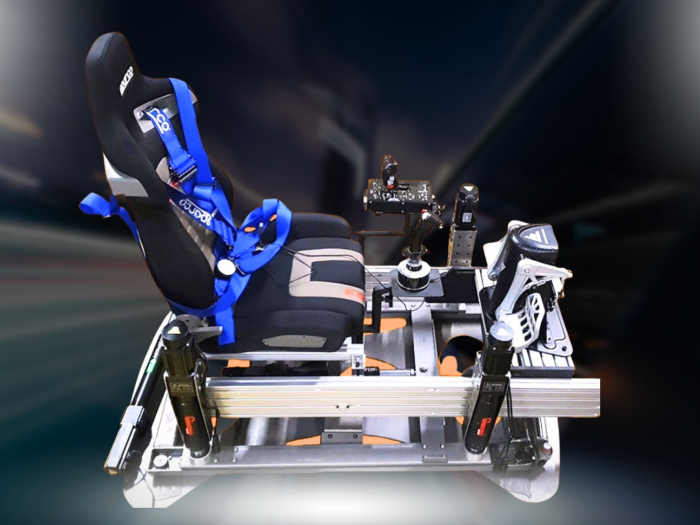

What if the biggest motion simulator problem isn’t the platform, but the mismatch around it? The common motion simulator problems to avoid often start with overlooked details: hardware that doesn’t suit your cockpit, software that can’t deliver the right telemetry, or movement that feels out of step with the action on screen.
Motion feedback should make braking points, kerbs and changes of direction feel more connected to the track, not leave you uncomfortable or unsure whether the setup is working properly. Before you buy or assemble your rig, check compatibility, space and configuration. A little planning can prevent an exciting upgrade from turning into a frustrating project.
This checklist covers hardware and software compatibility, cockpit and room considerations, calibration, motion tuning and signs that feedback isn’t aligned with what you see. Use it to diagnose setup problems methodically and decide which motion solution fits your space, software and expectations.
Key Takeaways
- The common motion simulator problems to avoid often start with a mismatch between your platform, cockpit, room and software.
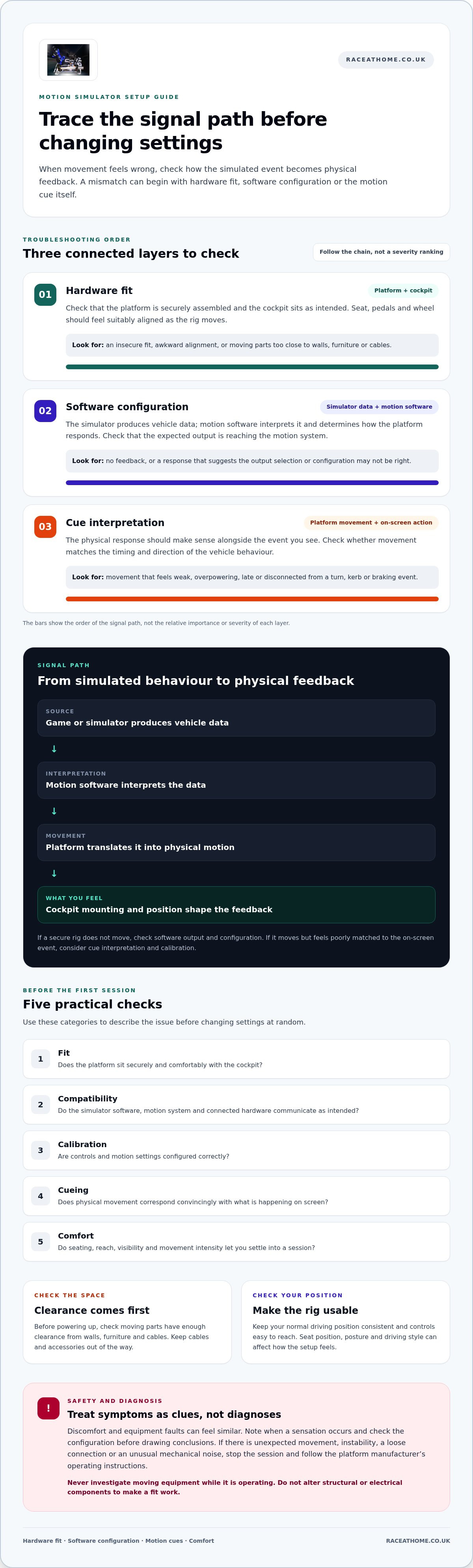
- Trace the signal path from simulated vehicle behaviour to platform movement to help identify whether an issue involves hardware fit, software configuration or motion cues.
- Treat symptoms as clues, not diagnoses. Discomfort and equipment faults can feel similar, so make basic setup checks before changing settings.
- Follow an ordered pre-session checklist covering room clearance, cockpit fit, compatibility, assembly, configuration and comfort.
- A low-profile platform with a compact footprint can make a home setup easier to plan. Compare its design with your space and intended use.
Common motion simulator problems to avoid before your first session
A motion platform can promise a vivid connection to the track, but the experience may disappoint if the platform, cockpit, software and seating position don’t work well together. The common motion simulator problems to avoid are often practical mismatches rather than dramatic hardware failures. Before your first session, check five areas:
- Fit: The platform and cockpit don’t sit together securely or comfortably.
- Compatibility: The simulator software, motion system or connected hardware doesn’t communicate as intended.
- Calibration: Controls or motion settings aren’t configured correctly.
- Cueing: Physical movement doesn’t correspond convincingly with what’s happening on screen.
- Comfort: Seating, reach, visibility or movement intensity makes it difficult to settle into a session.
These categories help you describe the problem before changing settings at random. Motion systems translate simulated vehicle behaviour into physical movement, but the result depends on how the platform, software and cockpit are configured. For background on different approaches, see this overview of motion simulator technology and types.
Not every problem needs the same response. A setting that needs adjustment is a configuration issue. Unexpected movement, instability, a loose connection or an unusual mechanical noise is different: stop the session and follow the platform manufacturer’s operating instructions before proceeding. Never investigate moving equipment while it’s operating.
When movement feels wrong, distracting or disconnected
Immersion depends on physical cues making sense alongside the visual action. A motion cue mismatch occurs when the platform’s movement doesn’t correspond in timing or direction with the vehicle behaviour shown on screen. If the image shows a car turning but the platform responds late or unexpectedly, the sensation can distract rather than deepen the experience.
Notice how the movement feels. Weak motion may be hard to detect; excessive motion can feel overpowering; mistimed motion can seem disconnected from a turn, kerb or braking event. These observations aren’t diagnoses. They could relate to settings, software output, expectations or another issue, so note when the sensation occurs and check the configuration before drawing conclusions. Discomfort can have different causes and isn’t inevitable.
Why a motion rig can feel harder to use than expected
Small usability problems can interrupt a session. Controls that are difficult to reach, cables or accessories in the way, an unsuitable seat position, or confusing settings can turn a simple adjustment into repeated interruptions. Your simulator, cockpit layout and expectations all shape the experience. A setup designed for one seating position or driving style may feel awkward if your posture or preferred feedback differs.
Make the controls easy to reach and keep your normal driving position consistent. Then consider whether the platform’s movement matches the feedback you want. More movement doesn’t automatically mean more realism. If you’re still getting familiar with platform fundamentals, the 6 DOF motion simulator guide explains how degrees of freedom relate to physical movement and the sim-racing experience.
How hardware, software and motion cues combine to cause problems
A motion rig turns simulated vehicle behaviour into physical feedback through several connected stages. The game or simulator produces data, motion software interprets it, and the platform translates it into movement. The cockpit and its mounting arrangement determine how that movement reaches you. If any stage is mismatched, you might get no feedback, an unexpected response or movement that feels disconnected from the on-screen action.
Physical movement should give you a meaningful counterpart to what you see, so each cue supports the on-screen event rather than competing with it. This is the foundation of convincing motion. It also offers a practical way to investigate common motion simulator problems to avoid: check each layer separately before assuming the platform itself is at fault.
- Hardware fit: Is the platform securely assembled, and does the cockpit sit as intended?
- Software configuration: Is the simulator output reaching the motion system in the expected way?
- Cue interpretation: Does the platform’s response make sense for the event shown on screen?
These layers interact, but separating them makes troubleshooting clearer. For example, if a secure rig doesn’t move, check the software output and configuration. If it moves but feels poorly matched to a turn or braking event, consider how the motion cues are being interpreted and calibrated.
Hardware fit and cockpit movement
The cockpit affects the movement you feel. If its position or mounting arrangement doesn’t suit the platform, feedback may feel less clear, or the seat, pedals and wheel may feel poorly aligned as the rig moves. Before powering up, check that the assembly is secure and that moving parts have enough clearance from walls, furniture and cables. Follow the platform’s product instructions, and don’t alter structural or electrical components to make a fit work.
Software signals, calibration and motion cueing
Software configuration determines whether the platform receives useful motion data and how it responds. An incorrect output selection or unsuitable setting could result in absent, weak or unexpected feedback. Calibration aligns the platform’s expected response with the simulator’s output, helping translate data into movement consistently. Follow the relevant manufacturer instructions, and change one setting at a time so you can identify what each adjustment changes.
Keep a short record as you test: note the simulator and session, the setting you changed, and the resulting movement. If the behaviour improves, you’ll know which adjustment helped. If it worsens, you can restore the previous value instead of trying to remember several changes. Changing multiple settings at once makes it harder to isolate the cause.
For a considered hardware match, explore Race@Home’s LowSlider motion platforms, designed with a low-profile form and compact footprint. Matching the platform, cockpit and available space helps create a setup that feels coherent from the first session.
How to tell setup trouble from motion sickness or a poor match
An uncomfortable or unconvincing session doesn’t automatically mean the platform is faulty. Similar sensations can have different possible causes, from a configuration issue to a mismatch between the motion style and your expectations. More movement doesn’t automatically mean more realism or comfort. A useful cue should feel coherent with the action, not simply stronger.
Treat symptoms as clues, not diagnoses. Note what you felt, when it happened and whether the platform’s movement matched the screen. Then use the checks below to narrow down where to look.
| What you notice | Possible category | First check |
|---|---|---|
| No movement during an event that should produce feedback | Output selection, compatibility or configuration | Check the simulator’s output and motion-system settings against their instructions. |
| Movement arrives late or doesn’t match the event | Signal path, calibration or cue settings | Use one familiar driving scenario and observe whether the response is consistent. |
| Movement feels stronger or weaker than expected, but remains consistent | Intensity settings or a poor match with your preferred feedback | Review the relevant motion settings and adjust cautiously. |
| Discomfort develops during a session | Could relate to comfort, sensitivity, visuals or movement | Pause and consider whether symptoms ease away from the simulator; don’t treat this alone as proof of a hardware fault. |
| Sudden severe movement or erratic behaviour | Possible equipment or configuration fault | Stop using the system and follow the manufacturer’s operating guidance. |
Signs that point towards configuration or compatibility
Absent, delayed or inconsistent movement can point towards a configuration or signal-path issue, although the symptom alone can’t identify the cause. Check settings methodically: change one variable, test the same familiar scenario and record what happens. If movement becomes unexpectedly severe or the system behaves erratically, stop the session rather than continuing to experiment.
When comfort, not a hardware fault, may be the issue
People differ in how they respond to visual and physical movement, and discomfort may have more than one contributing factor. If symptoms arise, pause instead of pushing through. Note whether they occur with a particular view, movement cue or session. A motion platform can add realism, but it doesn’t guarantee greater comfort for every driver. For persistent or severe symptoms, seek advice from an appropriate health professional.
For symptom-focused suggestions, consult a dedicated sim racing motion sickness guide alongside these setup checks. Keeping comfort observations separate from equipment behaviour can help you narrow down the issue without assuming either a fault or personal sensitivity is the answer.
Pre-purchase and pre-session motion rig checklist
A short checklist turns setup into a sequence of decisions rather than guesswork. Work through the steps in order: there’s little value in tuning motion before you know the platform fits the room and cockpit. These checks can catch common motion simulator problems to avoid before they interrupt a session.
Before buying or assembling a motion platform
Start with the space and equipment you have. Measure the intended footprint, allow for movement clearance around the cockpit, and consider where you’ll sit, enter and exit. Then check how your cockpit and simulator configuration fit the selected platform. For broader planning, the sim racing setup guide covers the wider rig.
- Room and clearance: Measure the floor area and check for walls, furniture, cables or other obstacles around the rig’s movement area.
- Cockpit fit: Check the platform’s intended arrangement against your cockpit, seat and driving position. Consider whether you can reach controls comfortably.
- Compatibility: Review the platform and simulator manufacturer’s information for supported hardware, software and connection requirements.
- Assembly: Read the platform’s assembly instructions before starting, and make sure you have the space and tools they specify. Race@Home platforms ship in four pieces for customer assembly, which can be completed in under an hour.
- Configuration: Identify where motion output and calibration settings are managed, and keep the relevant operating instructions accessible.
- Comfort: Check that your posture, visibility and access to controls feel right before adding movement to the experience.
Once you’ve mapped out these requirements, explore Race@Home motion platforms and consider how a low-profile design and compact footprint could suit your home setup.
Before each session and after configuration changes
Use a brief pre-session routine before switching on. Check that the assembly remains secure, the platform area is clear and cables are positioned safely. Follow the manufacturer’s operating instructions, then begin with conservative settings and a familiar driving scenario. After a configuration change, repeat that scenario so you can judge the difference clearly.
- Check for visible damage and anything obstructing the platform’s movement.
- Confirm the cockpit and controls remain in their intended positions.
- Listen and watch for unusual behaviour as the system starts and moves.
- Stop operation if you notice unexpected movement, unusual noises or visible damage.
Test in stages: changing one thing at a time makes it easier to tell which adjustment changed the motion. If a change makes the feedback less coherent, return to the previous setting before trying another. Repeatable checks give you a clearer route from setup to confident driving.
Choose a motion simulator designed around practical home use
Preventing the common motion simulator problems to avoid starts before purchase: match the platform to your cockpit, available room and intended use. A simulator can only deliver useful feedback as part of a compatible setup. Platform design matters, but it won’t remove every variable. Software output, calibration, cockpit fit and your preferred level of physical feedback still shape the result.
Evaluate the whole arrangement, not just the movement. A platform that fits your room but doesn’t suit your cockpit can create assembly and positioning challenges. Even a well-matched platform still needs suitable software configuration and a stable driving position. Compare your priorities before choosing:
- Physical footprint: Consider the space the platform occupies and the clearance needed around the cockpit.
- Cockpit fit: Check how your seat, wheel and pedals will sit with the platform, and whether you can reach controls comfortably.
- Assembly demands: Understand how the system is delivered and assembled, and set aside the space and time required by its instructions.
- Intended motion experience: Consider what kind of physical feedback you want, rather than assuming more movement will automatically feel more convincing.
- Degrees of freedom: Compare 3DoF and 6 DOF against your priorities, and use platform documentation to understand the movement each design provides.
What to prioritise in a home motion simulator
Picture a typical session in your room. Will the cockpit stay in place, or do you need to move it? Can you access the rig without obstacles, and does your chosen simulator configuration work with the platform? These practical questions help you judge whether a design suits your home. Degrees of freedom can then help frame the type of motion experience you’re considering.
Neither a 3DoF nor a 6 DOF platform is automatically right for every driver. Decide which movement characteristics matter to you, then weigh them alongside footprint, cockpit fit and assembly. That balance is more useful than choosing by a single headline feature.
How Race@Home approaches motion platform design
Race@Home’s LowSlider 3DoF and LowSlider 6 DOF Twin-Traction-Loss motion platforms are hand-built to order. Both have a low-profile design and compact footprint, useful considerations when planning a home setup. They ship in four pieces for customer assembly, which can be completed in under an hour. Follow the supplied platform instructions, and plan assembly around your room and cockpit rather than treating fit as an afterthought.
Choose with the complete rig in mind. A platform complements compatible hardware and software; it doesn’t replace careful setup or ensure every cue will suit every driver. If the footprint, cockpit arrangement, assembly approach and motion type align with your needs, explore Race@Home’s LowSlider platforms as a next step in planning your home simulator.
Make your next session a confident one
Your next step doesn’t need to be a major rebuild. Treat your setup as something you can refine: keep a brief record of how the rig feels in a familiar session, then make considered adjustments as your preferences develop. That gives you a personal reference point and makes it easier to distinguish a genuine change in behaviour from a different track, car or driving mood.
The common motion simulator problems to avoid are easier to manage when your choices reflect how you actually use your rig. Think about the experience you want, the space you have and the hardware you’re building around. A well-matched platform can make physical feedback feel like a natural extension of the racing on screen, while careful setup helps you get more from every lap.
Ready to consider a motion platform for your home rig? Explore Race@Home’s LowSlider motion platforms and take the next step towards a more immersive sim racing experience.
Frequently Asked Questions
What are the most common motion simulator problems?
The most common issues involve a poor fit between the platform and cockpit, incompatible software or hardware, incorrect settings, and feedback that feels absent or out of sync. Intermittent controller dropouts can also interrupt a session; electromagnetic interference is one possible cause. Note whether a problem happens every time or only under particular conditions, such as after reconnecting a control. This can help narrow down which of the common motion simulator problems to avoid needs attention first.
Can a motion simulator cause motion sickness?
Yes, some people can feel discomfort during a motion simulation, but it isn’t inevitable. A difference between what your eyes see and what your body senses may contribute, and sensitivity varies between individuals. If you start feeling unwell, pause rather than pushing through. For a more comfortable trial, use a familiar view, keep visuals smooth and try a shorter session. Persistent or severe symptoms warrant advice from an appropriate health professional.
Does every sim racing game work with a motion simulator?
No. A game needs to provide motion data in a format the motion system’s software can use, and compatibility can vary between platforms and configurations. Before choosing a game, consult the motion platform and software documentation for supported titles and required settings. A game update or switching between PC and console may also change what works. If motion stops in one title but functions in another, compare their output options before changing hardware.
What should I do if my motion platform moves unexpectedly?
Stop the session if movement is sudden, severe or erratic. Don’t continue driving to see whether the behaviour settles. Follow the manufacturer’s instructions for stopping and securing the platform, then note what happened, including the simulator, setting and on-screen event. Once the system is safe, use the operating guidance to decide what checks are appropriate. If you notice damage or unusual mechanical behaviour, don’t resume operation until it’s been addressed according to the manufacturer’s instructions.
Can I add a motion platform to an existing sim racing cockpit?
Often it’s possible, but compatibility depends on the cockpit’s mounting arrangement, available space and the platform’s requirements. Check the platform documentation for its intended installation and any stated limits, then compare those details with your cockpit and attached equipment. Consider how the addition may affect seat position, pedal reach and access to controls. A cockpit that fits the platform physically still needs suitable software and motion output to deliver the intended feedback.
How can I make motion feedback feel more realistic?
Focus on clarity, not maximum movement. Use calibration settings suited to your simulator, then adjust cue strength in small steps so braking, cornering and kerb feedback remain distinct. Keep camera shake effects restrained, as artificial visual movement can compete with platform cues. After each change, test the same car and track section; consistent conditions make it easier to judge whether the physical response now supports what you see.


