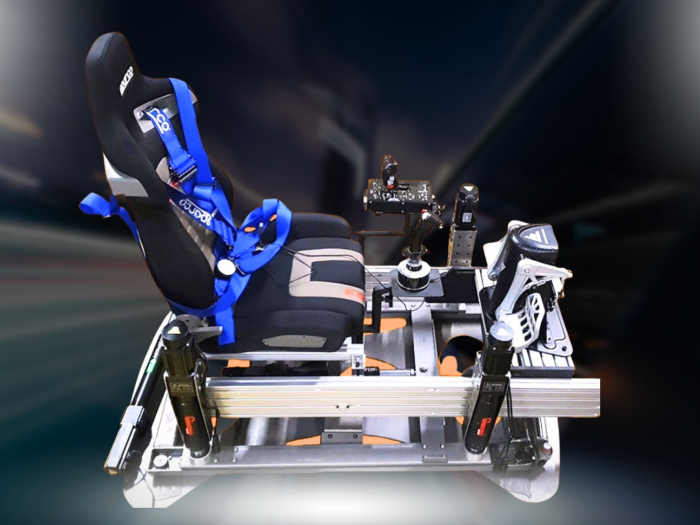

Consistent maintenance keeps a motion simulator’s movement precise and responsive. A practical motion simulator maintenance guide combines inspections of cables, hardware and software connections with calibration, controlled software changes and a schedule shaped by use and operating conditions. Maintenance routines can include inspections, system checks, calibration and software updates, with schedules tailored to the simulator and its operating conditions.
It’s easy to focus on the motion itself, but a loose connector, sensor issue or changed control setting can affect the feedback you feel in the seat. Regular checks help identify wear, unusual noise or inconsistent movement before it disrupts a session.
This guide explains what to inspect, how to manage calibration and software updates, and how to organise daily, weekly and monthly upkeep. You’ll also learn how operating hours, fault history and condition data can help shape a more proactive maintenance plan.
Key Takeaways
- Inspect connections, mounts and moving parts for wear, looseness or unusual movement, and record faults so recurring issues are easier to spot.
- After calibration or configuration changes, verify that sensor feedback, actuator response and motion limits behave as intended.
- Back up control settings before software or firmware updates, then test changes before using them in regular operation.
- Build daily, weekly and monthly checks around your simulator’s use and environment, following its maintenance guidance.
- Track operating hours, cycle counts and condition trends to help identify developing problems before they interrupt a session.
1. Routine inspections of cables, hardware, and software connections
In the United States, inspection requirements depend on the simulator’s application and operating setting. For formal flight training, maintenance logs can help demonstrate compliance with relevant industry standards and regulations; otherwise, follow the equipment manual and applicable site procedures. A motion simulator maintenance guide should begin with those instructions, not assumptions drawn from another simulator.
For routine checks, safely shut down the system and trace connections from the control computer to the drive cabinet, sensors and actuators. Inspect cables for fraying, crushed insulation, sharp bends and abrasion near moving joints. Check connectors for looseness, contamination, corrosion or damaged locking clips. Secure cable routes so platform movement cannot pull or pinch them. This motion simulator maintenance guide also applies to software connections: confirm that relevant devices communicate and note any error messages.
Inspect actuator mounts, joints, fasteners, platform structure, mechanical stops, covers and attachment points. Look for loose fixings, fresh contact marks, cracks or movement where a joint should stay secure. Compare suspected changes with the equipment manual rather than adjusting parts by guesswork. Record the location and condition, especially if the same fault recurs.
Lubricate only where the manufacturer specifies, using the stated lubricant and interval. Remove contamination first, and avoid excess lubricant that could attract debris or migrate into sensitive areas. Keep drive cabinets and control enclosures clear, with airflow unobstructed. Follow the approved cleaning method, since uncontrolled compressed air can push dust into components.
Check electrical systems and emergency stops using approved procedures. Isolate energy where required, restrict access to the platform’s movement area, and coordinate technicians with operators. Test emergency stops, limit switches, access interlocks, overspeed and overtravel protections, brakes, fault alerts and controlled shutdown behaviour. A software indicator alone does not prove that a physical safety device works.
Common faults include following error, vibration, unusual noise and inconsistent movement. Note the fault code and operator observations, then check for obstruction, loose feedback connections or visible cable damage. Repeated intermittent safety faults need investigation; wiring fatigue, connector issues, environmental ingress, poor grounding or emerging control problems may be involved. Log findings, replaced parts, measured conditions and return-to-service results.
Augmented reality can overlay a digital checklist or component location onto a technician’s view, supporting visual inspection without dismantling equipment. Use it to guide checks of cable routes, mounts and access points, then record defect locations. The overlay can assist an inspection, but it does not replace physical examination or functional safety testing.
2. Calibration and software configuration control
Calibration connects digital commands to the movement you feel. If sensor readings drift or controller settings change, the motion system may respond differently, even when its components still appear functional. Set calibration intervals according to application demands and the acceptable measurement uncertainty and drift for that use.
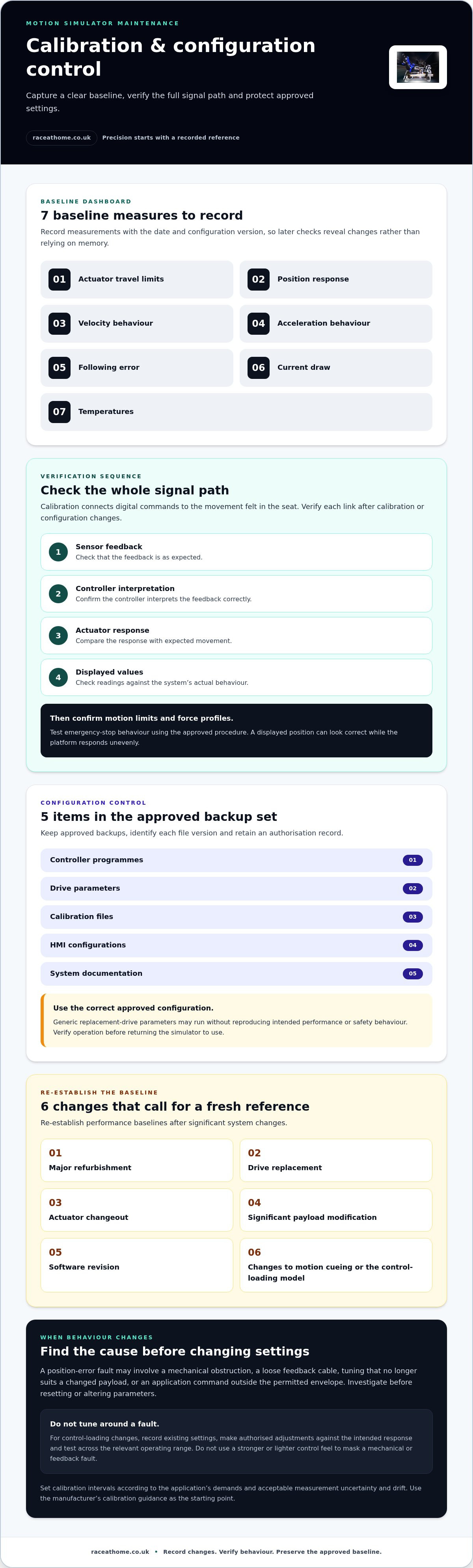
Use the simulator manufacturer’s calibration guidance as your starting point. Record a baseline before making adjustments, then compare the system’s measurements with its expected behaviour. Useful baseline data includes actuator travel limits, position response, velocity and acceleration behaviour, following error, current draw and temperatures. Keep measurements with the date and configuration version, so later checks show changes rather than relying on memory.
After calibration, verify the complete signal path. Check sensor feedback, how the controller interprets that feedback, actuator response and displayed values. Confirm motion limits and force profiles, then test emergency-stop behaviour under the approved procedure. If a displayed position looks correct but the platform responds unevenly, compare the sensor signal with actuator movement before changing tuning values.
Control-loading calibration needs the same discipline. The control-loading model shapes how steering or other controls feel, so changes can alter the relationship between an input and its physical resistance. Record the existing settings, make authorised adjustments against the intended response, and test the result across the relevant operating range. Don’t use a stronger or lighter control feel to mask a mechanical or feedback fault.
Configuration control protects that baseline. Store approved backups of controller programmes, drive parameters, calibration files, HMI configurations and system documentation. Give each file version identification, a date and an authorisation record. A replacement drive loaded with generic parameters may run, yet fail to reproduce intended performance or safety behaviour. Restore only the correct approved configuration, then verify operation before returning the simulator to use.
A position-error fault can have several causes. Check for a mechanical obstruction, a loose feedback cable, tuning that no longer suits a changed payload, or an application command outside the permitted envelope. Find the cause before resetting or altering parameters. Re-establish performance baselines after major refurbishment, drive replacement, actuator changeout, significant payload modification, software revision, or changes to motion cueing or the control-loading model. This makes emerging drift easier to distinguish from a deliberate configuration change.
Careful calibration can also inform platform selection: compare motion platform design with the control response and operating limits your simulator needs.
Keep to a regular calibration schedule based on the manufacturer’s guidance and how often the simulator is used. A sim racing platform’s motion system should be checked as part of its wider maintenance routine, especially after repairs, configuration changes or unusual movement.
After calibration, check the complete response chain, including sensor feedback, controller interpretation, actuator response and displayed values, as well as motion limits, force profiles and emergency-stop behavior. Compare results with the established baseline and document discrepancies before returning the system to service, helping later checks distinguish calibration changes from emerging faults.
3. Software and firmware updates
Software and firmware updates can address minor bugs, improve performance and preserve compatibility with preventive maintenance tools or newer training modules. They can also change how devices communicate with controllers, sensors and motion hardware. Treat each update as a configuration change, not a routine download, because a new version may affect the simulator’s established behaviour.
Before installation, record the current software and firmware versions, then create an approved backup. Include controller programmes, drive parameters, calibration files, HMI configurations and related system documentation. Label each copy with its version, date and authorisation record. This gives you a known recovery point if an update causes a fault or prevents a connected component from communicating.
Test the new version away from critical operation before integrating it into the simulator. Review its release notes for changed functions, dependencies and device compatibility. Install it in a controlled maintenance window, following the manufacturer’s sequence. Keep the previous approved files available and document warnings or altered settings. If testing reveals unexpected behaviour, stop the rollout and restore the approved configuration.
After installation, check the simulator as a complete system. Confirm that the software starts correctly, connected devices communicate and operator controls behave as intended. Run a representative racing scenario, such as a turn or braking sequence, and compare displayed data with the physical response. Record the installed version, test outcome, observed faults and any corrective action before resuming normal use.
Updates matter, but their timing should follow the manufacturer’s guidance and the simulator’s needs, not an arbitrary calendar interval. Prioritise updates that address relevant bugs, security or compatibility problems. If the simulator depends on a specific operating system, driver or application, assess those dependencies together. Updating one component can affect the rest of the software stack.
For flight simulators, EASA regulations require regular updates to simulator navigation, aircraft, terrain and virtual landscape databases. Keep these data updates distinct from operating-system or firmware changes, and record the version and installation result for each database. That separation makes it easier to identify whether a changed training scene comes from new scenery data or a software revision.
Updates don’t replace physical upkeep. Continue scheduled cleaning of filters, cooling paths and sensor areas, since dust or restricted airflow can affect hardware independently of software. If a warning appears after an update, capture its exact message and version details before troubleshooting. Compare the result with the pre-update record, then investigate whether the cause lies in configuration, compatibility or a separate mechanical issue.
4. Daily, weekly, and monthly maintenance schedules
Maintenance depends on simulator type, manufacturer instructions and operating conditions. A flight-training simulator may need checks tied to training fidelity and database use, whilst a racing simulator’s schedule reflects its motion hardware, operating hours and environment. Use the manufacturer’s manual to set tasks and intervals, then adjust inspection frequency for dust, humidity and temperature changes.
Daily checks should catch obvious changes before sessions begin. Inspect the platform visually for loose items, damage or blocked movement, and check that cables and connections remain clear. Run the simulator through its normal start-up and a controlled operational test. For flight simulators, operators may also perform a subjective test flight before sessions; note unfamiliar vibration, noise or delayed movement.
Weekly checks allow a closer look at function and wear. Follow the manual’s inspection sequence, review recent faults and examine accessible mounts, joints, fasteners, cable routes and covers. Test controls and safety functions using approved procedures. If movement feels different during a familiar racing session, record the condition and compare it with previous observations.
- Daily: Check the visual condition, clear movement paths, start-up behaviour and operating response. Record faults and operator observations.
- Weekly: Review connections and accessible mechanical components, check fault history, and carry out minor calibration where the manual directs.
- Monthly: Complete a broader system evaluation, review software status and assess recurring faults against maintenance records.
- Quarterly and annual: Include these intervals in the schedule where the equipment manual requires them, alongside any semiannual tasks.
Include cleaning in the planned routine rather than waiting for visible build-up. Follow the manual for dust filters, cooling systems and sensor ports, using methods that protect sensitive components. If the room is dusty or humid, increase inspection frequency according to observed conditions. Record completed tasks, measured results, replaced parts and return-to-service checks.
Safety checks should cover emergency stops, limit switches, access interlocks, brakes, overspeed and overtravel protection, fault alerts and controlled shutdown. Use approved procedures, lockout/tagout practices where required, controlled access to the platform’s movement area, and clear communication between technicians and operators. If movement is unexpected or a stop is unreliable, don’t return the simulator to normal operation until it has been assessed.
Maintenance and repair costs depend on the fault, affected components, replacement parts and labour involved. A scheduled inspection differs from troubleshooting an intermittent control fault or replacing a damaged actuator, so the required work determines the cost.
Choose tools and replacement parts to match the manufacturer’s manual and the task. Keep suitable cleaning materials, approved diagnostic equipment and correctly specified consumables available. For platforms with continuous rotation or yaw mechanisms that require replacement slip rings or rotary connectors, industrial specialists such as TME Systems Pty Ltd provide components engineered to endure heavy cyclic use. Use trained technicians for adjustments involving drives, electrical systems or motion limits.
5. Predictive maintenance and self-monitoring technologies
Predictive maintenance uses operating evidence to guide inspections rather than relying on calendar intervals alone. Combine scheduled checks with operating hours, cycle counts, fault history and condition data. A frequently used simulator accumulates cycles differently from one used occasionally, so both measures help technicians assess wear and plan work.
Start with a performance baseline after commissioning or a major system change. Record the normal range for following error, peak current, motor temperature, encoder faults, bus voltage events and drive warnings. Include operating conditions and configuration, since load, motion tuning and software revisions can affect measurements. Without that context, a changed reading may be difficult to interpret.
Track each measure over time. For example, rising peak current alongside increased motor temperature may point to a developing mechanical load or drive issue. A new encoder fault combined with inconsistent position feedback suggests a different line of investigation. These patterns help guide assessment, but a monitoring alert is evidence to examine, not a diagnosis or proof of a failed component.
Useful monitoring depends on consistent records. Capture the time, operating hours or cycle count, simulator state, fault code and operator observation for each event. Compare like with like: a current reading during a demanding manoeuvre should not be judged against a low-load idle reading. Technicians can then distinguish persistent drift from a single unusual event.
Set alert limits using manufacturer guidance, established baselines and operating requirements. If a value crosses its approved limit, follow the fault procedure and assess the machine before returning it to service. If readings change gradually but remain within limits, pay closer attention to the affected component and compare its trend at the next planned evaluation. Avoid changing controls simply to suppress an alert, as that can obscure the underlying condition.
Connect monitoring records to maintenance decisions. A useful log links trends to inspections, adjustments, replaced parts and return-to-service results. If repeated drive warnings occur after a change in load, for instance, compare current draw and following error with the earlier baseline. This helps assess whether the cause relates to loading, tuning or another developing fault.
Condition monitoring supports planned intervention and can help limit downtime, but it complements physical inspections and approved safety tests. Review fault history alongside operator observations to understand how the simulator behaves. Use the evidence to prioritise investigation, not to extend a maintenance interval without justification.
Looking for a motion platform suited to your simulation setup? Explore motion platform options as you plan your hardware and monitoring requirements.
Race@Home: LowSlider 6 DOF Twin-Traction-Loss Motion Platform
Race@Home’s LowSlider 6 DOF Twin-Traction-Loss Motion Platform is a motion hardware option for sim racers seeking immersive physical feedback. Race@Home designs and manufactures LowSlider platforms for realistic racing, with a compact physical footprint. If you’re comparing platform configurations, the LowSlider 3DoF motion platform is another option to consider alongside the six-degree-of-freedom model.
Both platforms are hand-built to order and shipped worldwide in four pieces. The pieces are designed for straightforward assembly, with customer set-up taking under an hour. These details can help you plan the practical side of adding motion hardware to your simulator, while the inspection and upkeep routines in this guide help you care for your system once it’s in use.
To explore the motion platform options, visit raceathome.co.uk.
Build your next simulator setup with confidence
Use this motion simulator maintenance guide as a starting point for a more deliberate approach to your rig. Your next step could be refining an existing setup or choosing motion hardware suited to the driving experience you want. Consider how physical feedback, available space and your other simulator components fit together before making changes.
Race@Home offers the LowSlider 6 DOF Twin-Traction-Loss Motion Platform and LowSlider 3DoF motion platform for sim racing, alongside Pimax VR Headsets. These are hardware options to explore as you shape your system, rather than a substitute for the equipment-specific maintenance procedures discussed above.
If you’re planning a simulator setup and want to explore the available hardware, contact Race@Home about your simulator requirements. A considered hardware choice gives you a strong foundation for precise, immersive sessions and the upkeep that keeps them running smoothly.
Frequently Asked Questions
How often should motion simulator components be inspected and serviced?
Inspect before use, then schedule deeper servicing according to the manufacturer’s manual, operating hours and conditions. Daily, weekly and monthly checks may suit your routine, but a heavily used system can need closer attention than one used occasionally. Dust, humidity and temperature changes can also affect inspection frequency. After unusual noise, impact or unexpected movement, assess the system before the next session and record what changed.
What are the steps for calibrating a motion simulator platform?
Calibrate using the manufacturer’s procedure and approved reference values. First note the current configuration and relevant baseline readings, then make the instructed adjustment and compare the result with the intended response. Check each axis independently before assessing combined movement, since an error on one axis can be masked during a complex cue. Record the final settings and test outcome so future technicians can distinguish calibration changes from system drift.
How do you maintain motion simulator motors, actuators, and bearings?
Use the equipment manual to guide motor, actuator and bearing care, since designs differ. Keep vents and surrounding areas clean, watch for changes in sound or temperature, and inspect accessible mountings for movement. Lubricate bearings only where specified, using the stated lubricant and interval. If an actuator develops inconsistent travel or a bearing makes unusual noise, document the operating conditions and arrange a focused assessment rather than compensating through control tuning.
What software and firmware updates are recommended for motion simulators?
Use manufacturer-approved updates that address relevant bugs, performance issues or compatibility needs for your simulator’s software and connected hardware. Before installation, check dependencies such as operating-system drivers and control applications, then retain the current working configuration. Trial the change away from critical operation and compare a familiar scenario afterwards. For flight simulators, keep navigation, aircraft, terrain and virtual landscape database updates current as required by EASA regulations.


