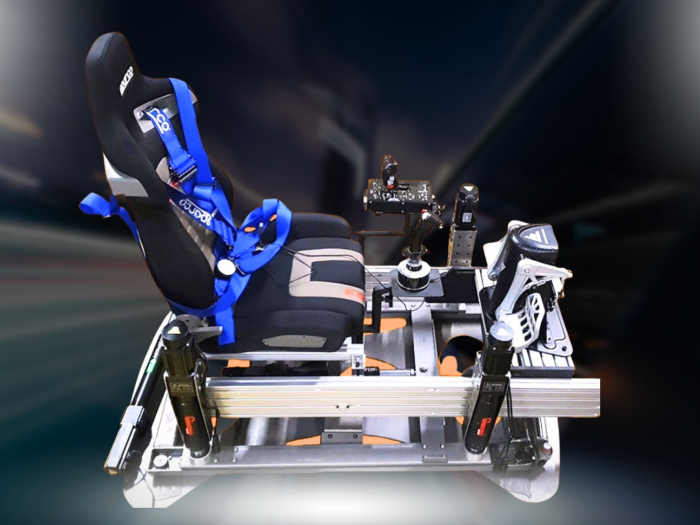

Smoother motion comes from matching each effect to the telemetry and the platform’s movement range, then making small adjustments and testing them in practice. If you’re learning how to tune motion simulator settings, use a telemetry capture of about 5 minutes to spot outliers, and test ground-vehicle data over 2 or 3 good laps. A Gear Smoothing Factor above 50 can cause latency as the platform returns to its normal surge position after a gear shift.
The same motion profile can feel different on different rigs because actuator layout and stroke affect how forceful each cue feels. This guide explains how to read telemetry, smooth abrupt or excessive movement, and adapt settings to your platform instead of relying on a one-size-fits-all profile. You’ll also learn a practical calibration sequence and how to tell whether an adjustment is helping, so every change has a clear purpose and the motion feels more natural.
Key Takeaways
- Change one smoothing or control setting at a time, then assess how the platform’s movement responds to telemetry.
- Use the relationship between setpoint and measured velocity to spot tracking problems, and tune controller terms according to the type of error.
- Adapt effect strength to actuator layout and stroke; a profile that feels balanced on one platform may be too forceful or subdued on another.
- Before position-control testing, set the encoder’s minimum and maximum values so motor-slider adjustments have a defined range.
Adjusting effect smoothing
To reduce motion sickness, soften abrupt effects and keep physical cues aligned with what you see on screen. A practical starting point for how to tune motion simulator settings is to identify the movement that feels uncomfortable, then adjust that effect instead of changing the whole profile.
- Adjust the Gear Smoothing Factor gradually, then test a gear shift and the platform’s return to its normal surge position. A value above 50 can cause latency during that return. If the platform feels slow after shifting, reduce the factor rather than adding more smoothing. Change only this setting during the test, so you can connect the physical response to the adjustment.
- For a less aggressive feel, reduce the relevant effect strength before increasing smoothing across the whole profile. Test one cue at a time, such as surge under acceleration, and compare the movement with what the screen shows. If the seat moves sharply whilst the vehicle appears settled, lower that effect. This can soften conflicting cues without dulling every movement the simulator produces. If you’re considering how to tune motion simulator settings for comfort, begin with the effect that feels most out of sync.
- Separate effect smoothing from motor-control tuning when diagnosing vibration or overshoot. If velocity tuning is too aggressive and the motor vibrates or chatters, reduce the P and I settings whilst keeping their ratio the same if possible. If position tuning produces substantial overshoot, increasing D can help when the controller uses PD tuning. Make one adjustment, test the same movement, and note whether the response settles more cleanly.
Simulator profile templates may include adjustable settings, giving you another way to make targeted changes. If pitch feels unnatural, try disabling Longitudinal G-Force Sustained, then assess the pitch response before making further adjustments.
Understanding motion effects and telemetry
Match each telemetry channel to its physical effect, then adjust gain based on the observed response. Keep travel limits within the platform’s mechanical range and the emergency stop accessible. Effect sliders are not a substitute for a stop control.
Identify the motion effects
Open the effect mapping and confirm each setting’s direction before changing its values. Pitch tilts the platform forwards or backwards; roll tilts it side to side; yaw rotates it around the vertical axis. Heave moves it vertically, surge moves it forwards or backwards, and sway moves it laterally. Check that the game’s telemetry triggers the expected effect, and don’t assign a cue to the wrong axis.
Adjust gain and intensity
If an effect feels exaggerated compared with the on-screen event, reduce its gain and repeat the same manoeuvre. Increase intensity only when the cue is too subtle to distinguish. For example, if cornering produces a sharp sideways shove, lower sway gain before changing roll. Gain controls how strongly telemetry becomes physical movement, so adjust one effect at a time.
- Capture about 5 minutes of telemetry to review how values behave across different events. Look for outliers, such as one brief spike that causes a disproportionate movement, before changing the overall gain.
- Compare the velocity setpoint graph with measured velocity as motor speed changes. Close tracking indicates a well-tuned velocity response; if a steady-state gap remains, increasing the integral setting can help correct it.
- Check what each effect represents before combining cues. Body Roll Intermittent simulates changes in roll rate and returns the platform to neutral during a manoeuvre when angular velocity is constant or zero.
In an emergency, use the platform’s designated stop control and keep travel limits appropriate to its mechanical range. There is no single numerical limit that suits every platform, so base the setting on actuator movement and the configured operating envelope.
Accounting for motion-platform differences
Adapt each profile to the platform’s actuator layout, stroke and direction of travel. Learning how to tune motion simulator settings means matching effect strength to the hardware, the game and the driver’s experience.
-
Calibrate the motion simulator
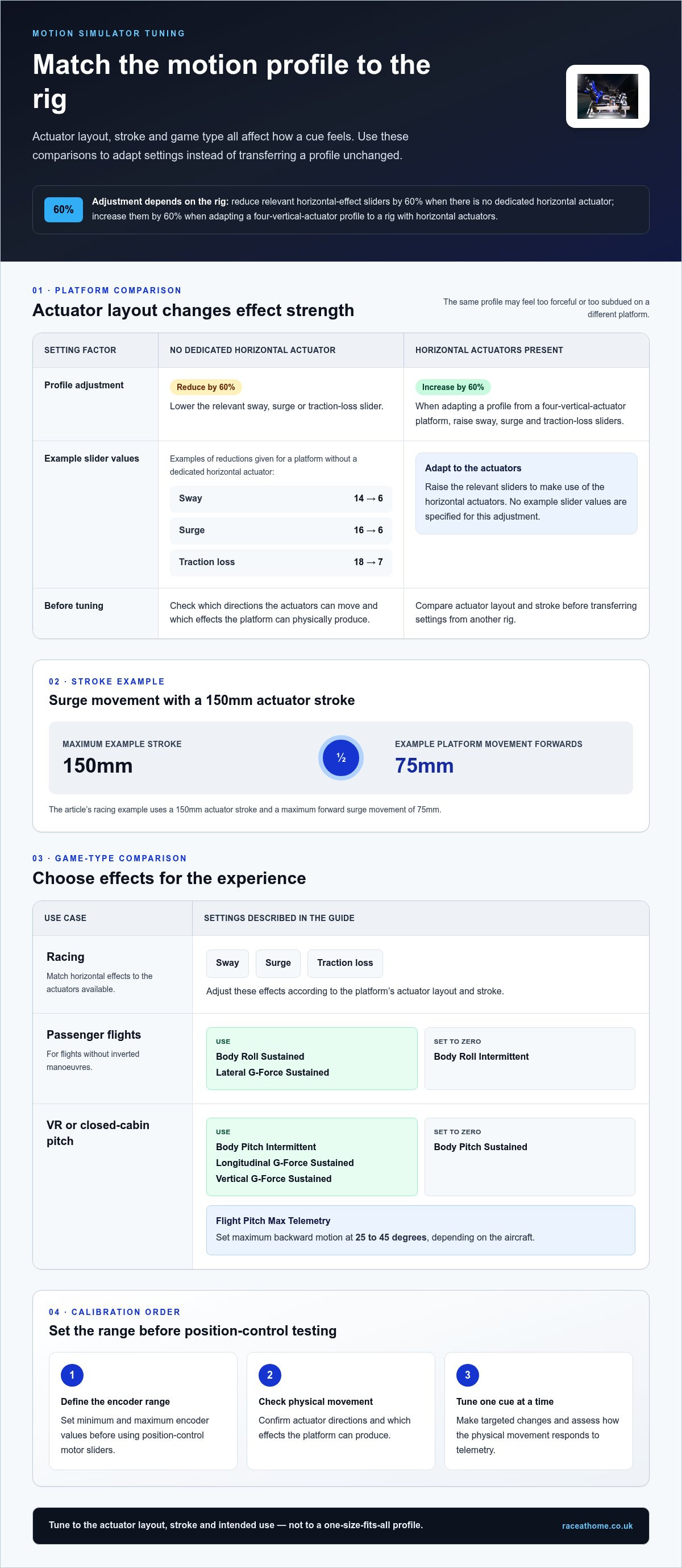
Set the minimum and maximum encoder values before using position-control motor sliders. Then check which directions the actuators can move and which effects they can physically produce. On a platform without a dedicated horizontal actuator, reduce the relevant sway, surge or traction-loss slider by 60%. For example, sway can move from 14 to 6, surge from 16 to 6, or traction loss from 18 to 7.
-
Account for user experience
Start with less intense effects if you’re new to motion simulation, then raise individual values as you learn how each cue feels. Experienced users can shape stronger, more specific feedback, but should still tune to the rig rather than copy a profile unchanged. When adapting a profile from a four-vertical-actuator platform to one with horizontal actuators, increase sway, surge and traction-loss sliders by 60%.
-
Choose settings for the game type
For racing, match sway, surge and traction-loss effects to available actuators. With a 150mm actuator stroke, the example surge setting moves the platform forwards by 75mm at maximum. For passenger flights without inverted manoeuvres, use Body Roll Sustained and Lateral G-Force Sustained, with Body Roll Intermittent at zero. For VR or closed-cabin pitch, use Body Pitch Intermittent, Longitudinal G-Force Sustained and Vertical G-Force Sustained, with Body Pitch Sustained at zero. Set flight Pitch Max Telemetry so maximum backward motion occurs at 25 to 45 degrees, depending on the aircraft.
-
Check hardware, software and game settings
Compare actuator stroke and layout before transferring values: a profile tuned for 150mm actuators may feel too jarring on 200mm actuators, whilst one created for 200mm may feel subdued on 100mm actuators. Check that the simulator software receives game telemetry and that adjustable profile-template values suit the platform. Setting maximum angle to 0 prevents movement from game telemetry, though the platform can still move to its ready position. Most flight platforms cannot rotate 360 degrees, limiting sustained roll or pitch during inverted flight. If you’re refining how to tune motion simulator settings, account for these hardware limits before changing effect strength.
How do you calibrate a motion simulator before tuning settings?
Calibrate the control range before tuning effects, then test each response against consistent movement. For position-control testing, enter the minimum and maximum encoder values before using motor sliders.
- Start with the simulator’s calibration controls and identify which readings correspond to each actuator’s minimum and maximum positions. Enter those encoder values before moving a motor slider. This defines the range for position control; without it, slider movement is not a useful basis for tuning effects.
- Compare the displayed position with the actuator’s actual direction of travel. If a positive command moves the platform the wrong way, correct the mapping before tuning telemetry effects. For example, a forward surge command should move the platform forwards, not produce a reversed cue that conflicts with the game.
- After setting the encoder range, test each motor slider separately. Check that the commanded position matches the platform’s response, then return the control towards its starting position. If one actuator responds differently from the others, resolve that calibration mismatch before adjusting shared effects such as pitch or heave.
- Keep initial test movements restrained and change one calibration value at a time. Small position changes make it easier to spot a reversed direction, unexpected movement or a mismatch between command and response. Avoid tuning several axes together, as this makes it harder to identify the cause of irregular movement.
- Once position control behaves as intended, tune the telemetry effects. Test a recognisable cue, such as braking for surge or cornering for sway, and compare the game event with the platform’s direction of movement. If the response is inconsistent, revisit the relevant actuator mapping before changing effect intensity.
With encoder limits established, you can tune from a clear mechanical baseline. Explore motion simulator options as you plan a platform setup around the movement cues you want to feel.
Race@Home: LowSlider 6 DOF Twin-Traction-Loss Motion Platform
The LowSlider 6 DOF Twin-Traction-Loss Motion Platform from Race@Home offers a next step when you want your telemetry tuning to translate into physical racing feedback. Its compact footprint and ultra-low profile suit setups where space matters, whilst its design focuses on a realistic racing experience. Race@Home also offers the LowSlider 3DoF motion platform, giving you another motion platform option for your simulator setup.
Choose a platform with movement capabilities that suit your preferred effects and available space. The right setup gives you a solid foundation for refining motion profiles, rather than relying on settings alone to create immersion.
Visit raceathome.co.uk to explore Race@Home’s motion platforms.
Shape your next session around the feel you want
Use each tuning session to make the simulator feel more connected to your driving or flying style. Note what you changed and how the movement felt, then use that experience to guide your next adjustment. As you learn how to tune motion simulator settings, focus on the sensations you want to retain, not on making every effect stronger. A deliberate profile gives each cue room to communicate clearly.
Your hardware is part of that experience. Race@Home offers the LowSlider 6 DOF Twin-Traction-Loss Motion Platform, the LowSlider 3DoF motion platform and Pimax VR Headsets. Consider how your preferred motion and visual setup work together as you refine the feel of your simulator.
Contact Race@Home for help exploring a setup that suits your goals. Take your next session one considered adjustment at a time, and enjoy the sharper connection between telemetry and movement.
Frequently Asked Questions
How do you tune motion simulator smoothing, filtering, and motion compensation?
Use smoothing to soften abrupt telemetry changes, then apply filtering to reduce unwanted fluctuations without erasing useful cues. Test one effect, such as road vibration, and compare the physical response with the visual scene. For VR motion compensation, check that the headset’s tracked movement and the simulator’s movement use consistent references. A mismatch can make the virtual view feel unstable. Change one control at a time.
How do you troubleshoot excessive vibration, clipping, or delayed motion in a simulator?
Before changing settings, identify whether the issue is in the telemetry signal, software output or physical platform. If the graph repeatedly reaches its displayed ceiling, reduce that effect’s gain so peaks no longer flatten. For vibration, check whether one channel is producing rapid changes and isolate it during a test. If motion arrives late, compare the event timing with the platform’s response and reduce processing that adds unnecessary smoothing.


