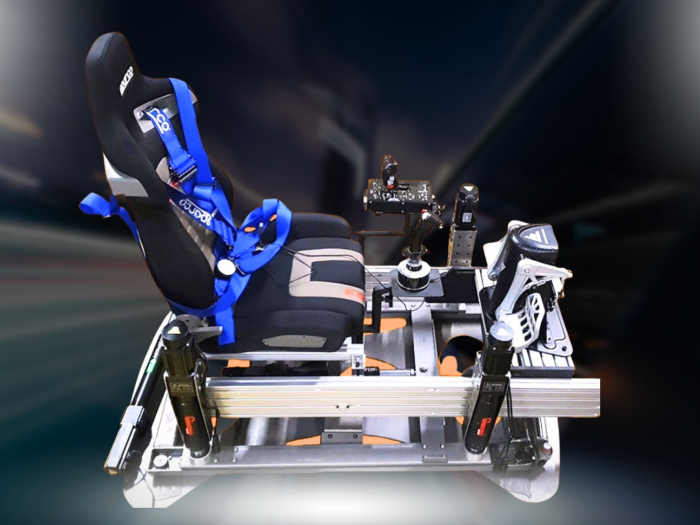

A moving rig can make even a carefully aligned triple-screen image uncomfortable to watch. When integrating triple screens with a motion rig, the key decision is whether the displays move with the simulator or stay fixed. Mounting them to the moving structure keeps their position relative to you consistent, but adds weight and may affect viewing comfort as the screens move.
Attaching everything to one rig may seem like the simplest option. In practice, the mount must support the screens securely, preserve their alignment and provide enough clearance throughout the rig’s movement. A separate, stable monitor stand avoids adding display weight to the moving platform, but the screens won’t follow the seat and wheel.
This guide explains how each mounting choice affects immersion, comfort and setup, including what changes when the screens move with the driver. Consider motion range, screen position and field of view before choosing an arrangement that suits your space and driving style.
Key Takeaways
- Choose between mounting the displays to the moving rig and using a separate stand by weighing image stability against how closely the screens follow your movement.
- Factor actuator travel and added screen weight into motion settings, as both can affect viewing comfort and the rig’s movement.
- Set screen angles and viewing distance together to shape a comfortable, immersive field of view.
- Account for bezel width when configuring display alignment, so the image joins cleanly across all three screens.
Rigging in Motion
Integrating triple screens with a motion rig means deciding what moves: the displays or the seat and chassis. That choice affects viewing comfort, mounting requirements and cable routing.
Screen size, curvature and viewing geometry
Viewing geometry describes how screen size, curvature and angle relate to your seated position. Get it wrong and the image can look distorted across the three panels.
Position the centre screen directly ahead, then angle each side screen towards your seating position. Curved panels can wrap the image closer around you, but their curve must suit your viewing distance. One participant suggested screens as large as 80 inches might be needed for suitable field of view when displays move with a rig. Treat that as an example, not a universal requirement.
Mounting options and cost comparisons
A triple-screen mount attaches the displays to the rig, while a motion-compatible stand supports them separately. Each arrangement handles movement and screen weight differently.
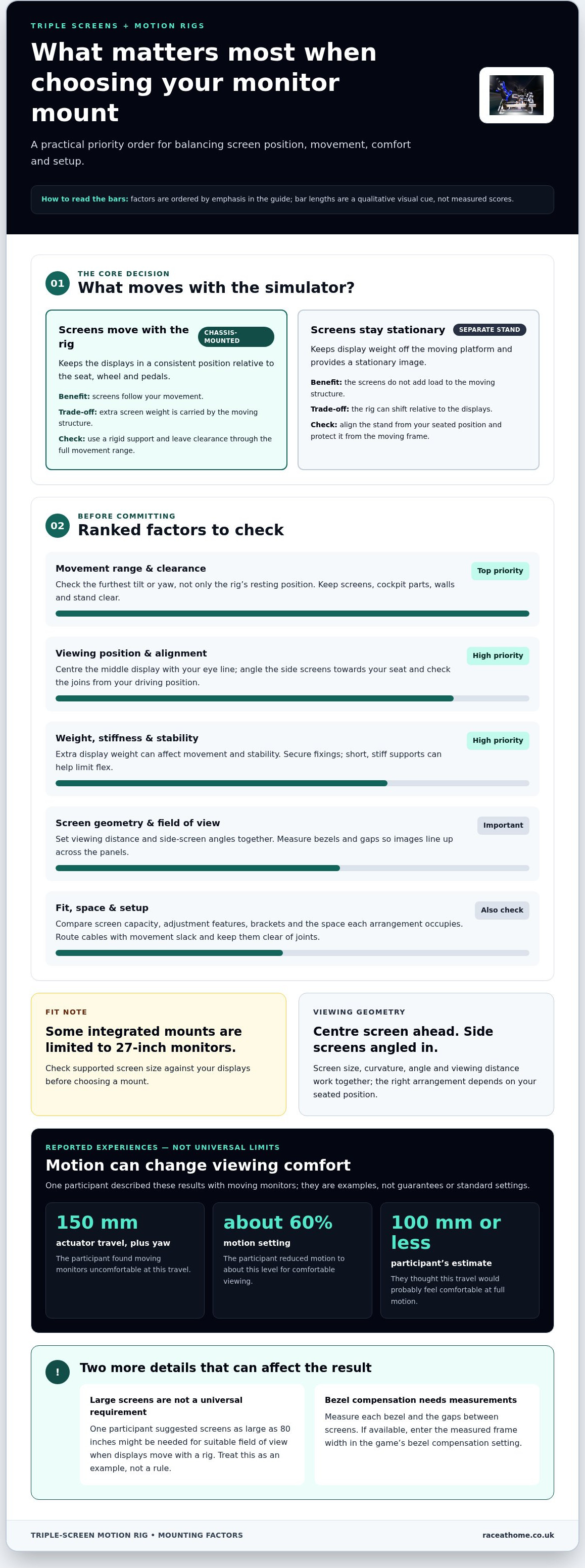
Some integrated mounts are limited to 27-inch monitors, so check the mount’s supported size against your screens. A separate stand keeps display weight off the moving structure, but the rig can shift relative to the screens. Position the stand close enough to preserve alignment, with clearance for the rig’s full movement.
Costs depend on the mount’s construction, screen capacity and whether you need a separate stand. Compare these requirements and the space each option occupies rather than assuming one arrangement is always cheaper.
Bezel width and field of view calculations
Bezel width is the visible frame between each screen’s active display area. Account for it when setting the field of view: overlooking the frame can make objects appear misaligned across adjoining panels.
Measure each bezel and the gap between screens when setting display dimensions. Enter the screen width, viewing distance and side-screen angles in your simulator’s display configuration, then align the panels at their joins. If the game offers bezel compensation, enter the measured frame width so the rendered image accounts for the hidden area.
Monitor stability on a motion rig
Monitor stability depends on mount stiffness, secure fixings and the rig’s movement. Vibration or flex can disrupt the image and put extra strain on the screens.
A participant found a moving monitor uncomfortable with 150 mm of actuator travel plus yaw, and reduced motion to about 60% for comfortable viewing. The same participant thought 100 mm or less would probably feel comfortable at full motion. Chassis platforms can also shift by centimetres, particularly on wooden floors, so allow clearance and secure the stand.
Your sim racing game needs to support triple-display rendering, while the motion setup needs compatible telemetry and software mapping. Check that both functions work before configuring them together.
Extra screen weight can affect stability and increase the risk of damage. Route cables with enough slack for the rig’s full movement, secure them away from joints, and inspect connections and fixings before driving.
How to mount triple monitors around a motion simulator rig
Start by deciding which structure will carry the triple monitors. Fixing all three screens to the moving chassis keeps them in a consistent position relative to the seat, steering wheel and pedals. A separate monitor stand keeps the displays stationary as the simulator moves beneath them. The choice affects alignment, load and the space required around the rig.
Plan screen position around your usual driving posture. Centre the middle display with your eye line, then angle the side panels towards the seat. Check that the wheel, steering column and cockpit frame don’t obscure the lower image. Leave room for the rig to move in every direction, including at its furthest tilt or yaw. A screen that clears the chassis at rest may not clear it during a cornering effect.
For a chassis-mounted setup, attach the monitor support to a rigid part of the moving structure. Keep the support short and stiff where possible, as long arms can flex under the screens’ weight. Fit the panels evenly, then inspect their joins from the seated position. With no one driving, move the rig through its range and watch for contact between the screens, cockpit parts and nearby walls.
A freestanding mount needs a separate alignment check. Position it close to the rig, then compare the display height and angles from your seated position. The chassis can move relative to the fixed screens, changing the apparent image position. Leave enough clearance around the stand to prevent the moving frame striking its base.
Compare mount materials, adjustment features, screen support and whether a separate stand is needed. Include the space each option occupies and any extra brackets. With either arrangement, route cables along the supported structure, leaving slack for movement and keeping them clear of joints.
Choose the arrangement that suits your room and motion profile. If keeping the screens in a consistent position relative to the seat matters most, a chassis-mounted triple-screen support may suit you. If you prefer a stationary image, consider a separate stand.
Recommended triple-screen monitor angles and viewing distance for sim racing
Set the screen angle and viewing distance together, using your seated eye position as the reference. These settings determine how much of the track fills your view and whether corners appear continuous across the panels.
Angle the side screens towards your seat
Place the centre display directly ahead, with its midpoint near your natural sightline. Angle each side screen inward until its image meets the centre panel without an obvious break. The right angle depends on screen width and how close you sit, so adjust the panels from your driving position rather than measuring them in isolation.
Use a straight track edge or horizon as a visual guide. If it bends at a join, adjust the side panel’s angle or position. Check both sides, since uneven gaps can make one corner look stretched. Keep your seat, wheel and screen alignment consistent as you adjust.
Set distance for your display and posture
Viewing distance determines how much of the display fills your field of vision. Moving closer makes the screens feel wider around you; moving further away narrows their apparent span. Find a position where the centre image stays clear and side details remain readable without excessive head turning.
Screen size changes that balance. A reported non-VR setup used a 49-inch ultrawide mounted to its rig, with its driver racing circuits 99% of the time. That example illustrates how driving style can shape display choices, but an ultrawide is not a triple-screen measurement guide.
Make adjustments in a repeatable order:
- Set the seat and wheel to your usual driving posture.
- Centre the middle panel with your eye line.
- Angle both side panels towards the seat.
- Adjust viewing distance, then inspect the image joins again.
Recheck alignment after changing your seat position, screen size or mount location. If the displays move with the chassis, assess their angles from your seated position while the rig is in motion. A fixed stand keeps the displays stationary, but the rig’s movement can change your apparent relationship to them. Make final adjustments to suit your posture and screen geometry.
How to calculate triple-monitor bezel width and field of view
Bezel width is the frame that obscures part of each display at the joins. Field of view is the horizontal scene visible from your seated position. Measure both accurately: a simulator can’t align virtual scenery properly if the screen dimensions or viewing distance are wrong.
Measure the active image area, not the monitor’s outer casing. Record each screen’s visible width, then measure the bezel where the panels meet. Include any physical gap between screens. For example, two adjoining frames plus a mounting gap create a wider hidden strip than either bezel alone.
For the centre screen, estimate its horizontal field of view with this relationship: 2 × arctan (active screen width ÷ (2 × viewing distance)). Use the same units for width and distance. A triple-screen calculator should also account for side-screen angles, since angled panels extend the view beyond the centre display.
Enter your measurements in this order:
- Measure each panel’s active width and visible height.
- Measure your eye distance from the centre screen.
- Record the angle of each side screen relative to the centre.
- Enter bezel width and screen gaps in the simulator’s display settings.
Bezel compensation adjusts the rendered image around the frames so objects appear continuous across screen joins. If a trackside marker disappears beneath a bezel, review the compensation and panel alignment. Pixel-based settings may require converting the measured frame width into pixels using the display’s resolution and active width.
Recalculate after moving the seat, changing the viewing distance or adjusting screen angles. Even a small change in geometry affects the apparent width of the scene. Keep your measurements together, then compare the rendered joins with a straight track edge before fine-tuning.
For a motion setup, use measurements from your normal seated position, not from the rig at rest alone. Explore motion simulator options as you plan a display arrangement around your preferred driving position.
Race@Home: LowSlider 6 DOF Twin-Traction-Loss Motion Platform
The LowSlider 6 DOF Twin-Traction-Loss Motion Platform from Race@Home brings movement cues into a sim racing setup. It’s a relevant option if you’re planning a motion rig and want to consider how its movement will work alongside your display arrangement.
For a different motion configuration, the LowSlider 3DoF motion platform is another available option. In either case, treat screen mounting, viewing geometry and motion as connected parts of the overall setup. Your choice between chassis-mounted displays and a separate monitor stand affects how the screens relate to the moving seat.
Race@Home also offers sim racing accessories and Pimax VR headsets. Explore the motion platform options to find hardware that suits your space and immersion goals.
Contact Race@Home to discuss your motion platform requirements.
Shape the experience around your driving
A considered approach to integrating triple screens with a motion rig starts with the experience you want, not a list of hardware. Decide which sensations matter most in your favourite driving discipline, then use that priority to balance visual immersion with physical feedback.
Before settling on screen positions, plan the setup around your usual seating posture. Record screen placement and motion settings as a baseline, then change one element at a time during testing. This helps you tell whether an adjustment improves comfort or simply shifts the compromise. Keep the setup adaptable as your preferences evolve.
The right configuration is personal. A focused track-racing layout may call for different visual priorities than a setup designed for varied driving experiences. If you’re ready to consider motion hardware alongside your display plans, contact Race@Home for setup advice. Take the next step with a clear sense of what you want to feel from every lap.


